Windows live media command center
LIVE MEDIA STUDIO PRO
Live radio, TV, IPTV, recording and diagnostics in one elegant studio.
A polished operating surface for selecting live sources, previewing video, monitoring several channels, recording sessions, organizing stations, scanning broken links and following dashboard intelligence without leaving the main workspace.
Update date: Checking...
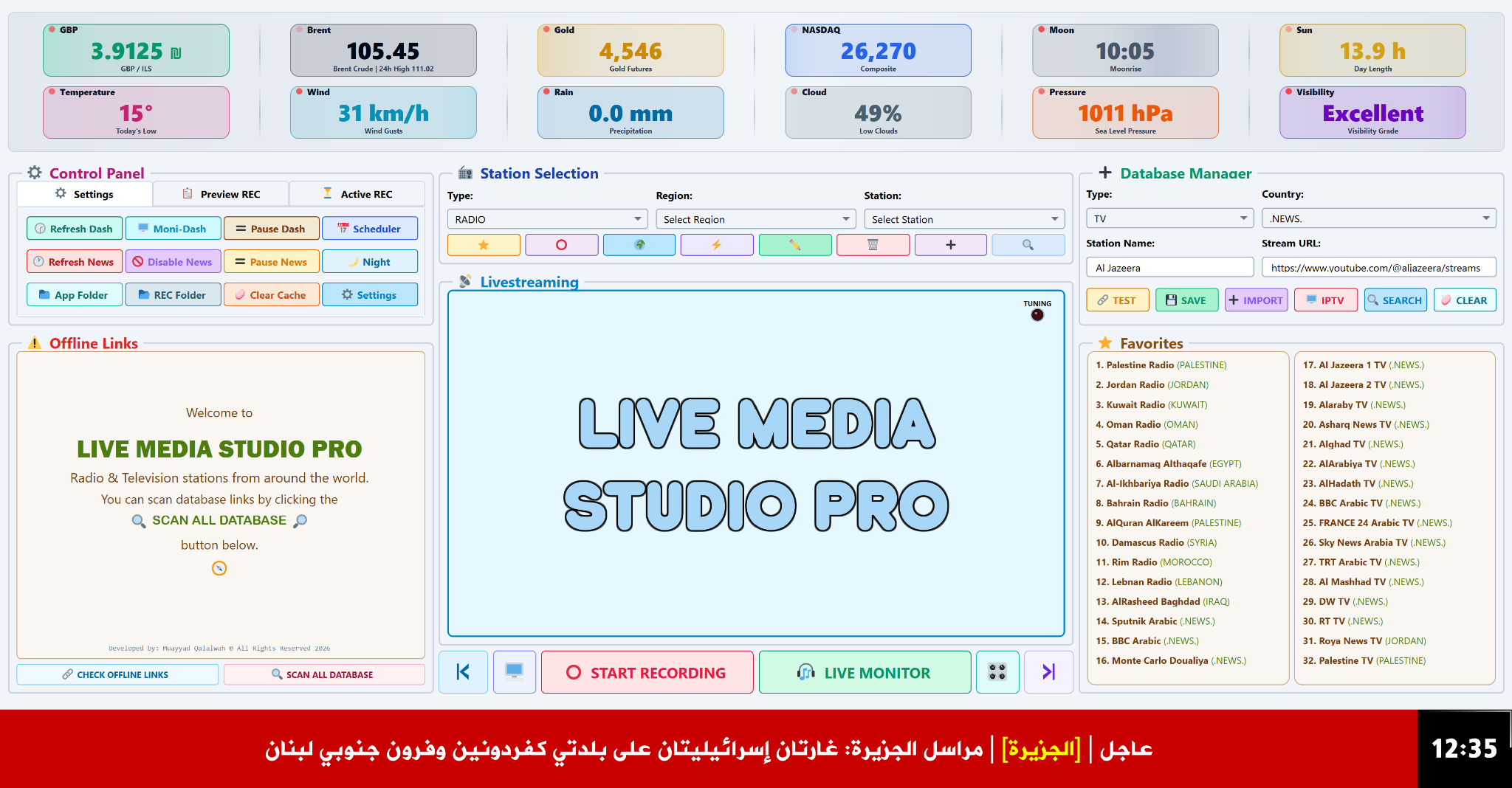
General workspace
Everything visible where it is needed.
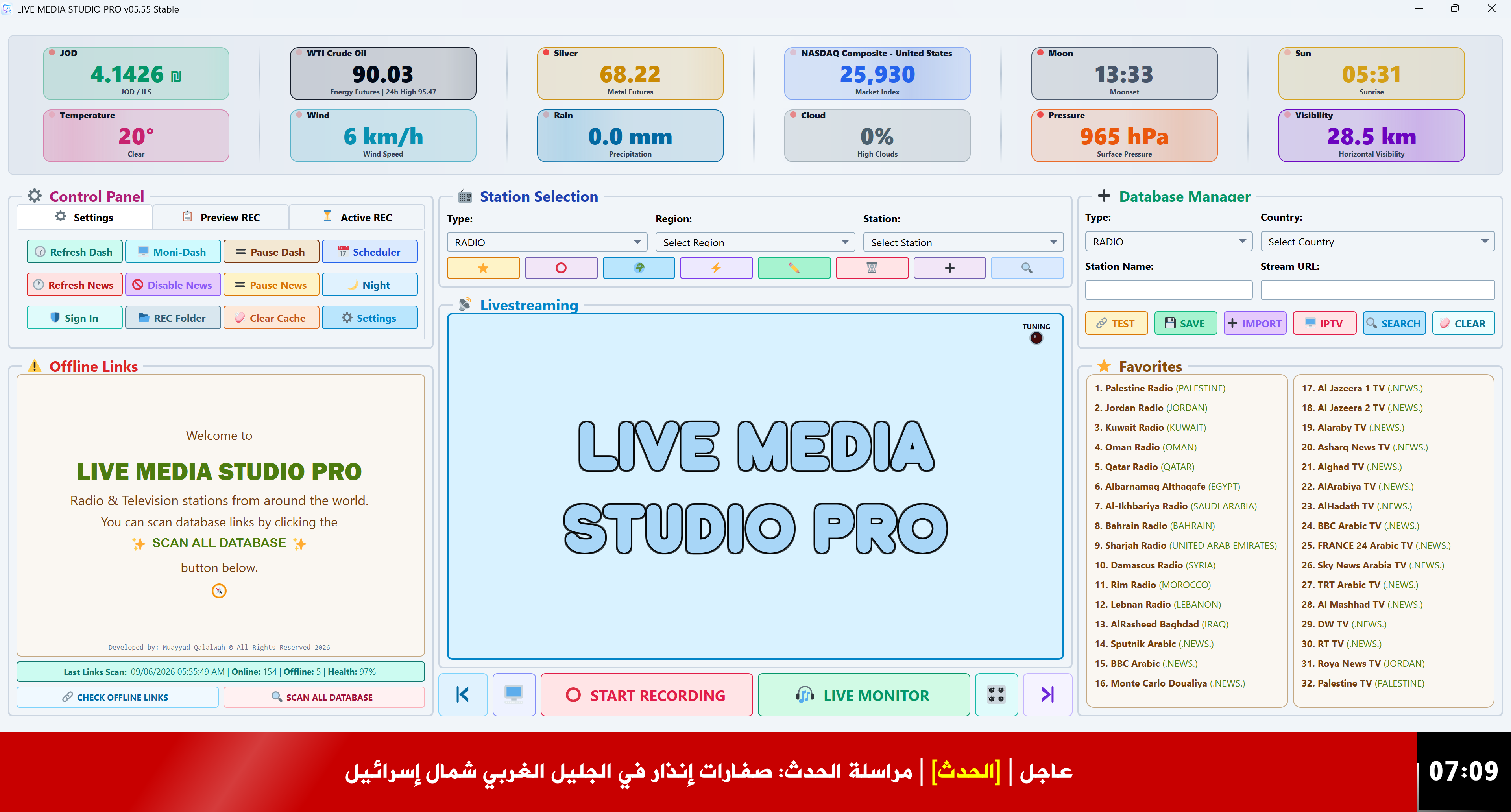
The main interface keeps station selection, database management, livestreaming, favorites, recording controls, diagnostics, dashboard cards and the news ticker in a single operational layout. Sign In opens Cloud Account settings, while Last Links Scan keeps the latest scan time and database health visible.
Command-center layout
A wide workspace designed for live work, not just playback: the operator can select, test, save, favorite, scan and record from the same screen.
Database and favorites
Add radio or TV entries, edit stream URLs, test links, import stations, search the media database and keep quick favorites grouped by country or type.
Playback
Radio, TV and IPTV share one elegant playback path.
Switch between audio streams, 16:9 video sources and imported IPTV channels while preserving a clear distinction between radio and television workflows.
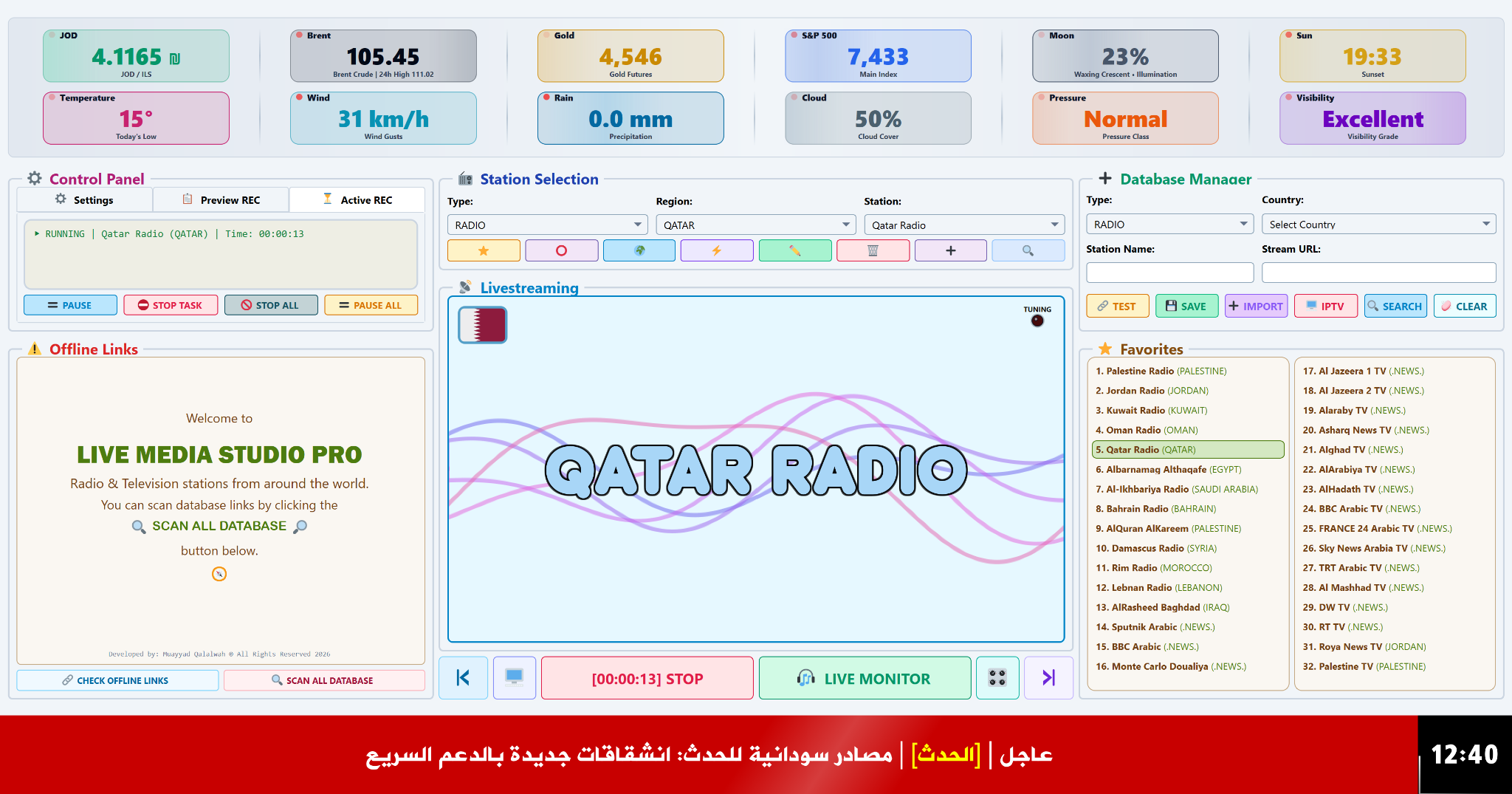
Recording
Record live sessions with visible control.
Recording controls are placed under the livestreaming surface, while the active recording panel shows running tasks, timing, pause/stop controls and quick access to the recording folder.
- Manual and scheduled recording workflows
- Quick pause, stop task, stop all and folder access
- Designed for long radio and TV sessions
Monitoring
A multi-channel control room inside one window.
Multi-Monitor offers a focus layout for one dominant channel and a uniform grid for broader simultaneous viewing.
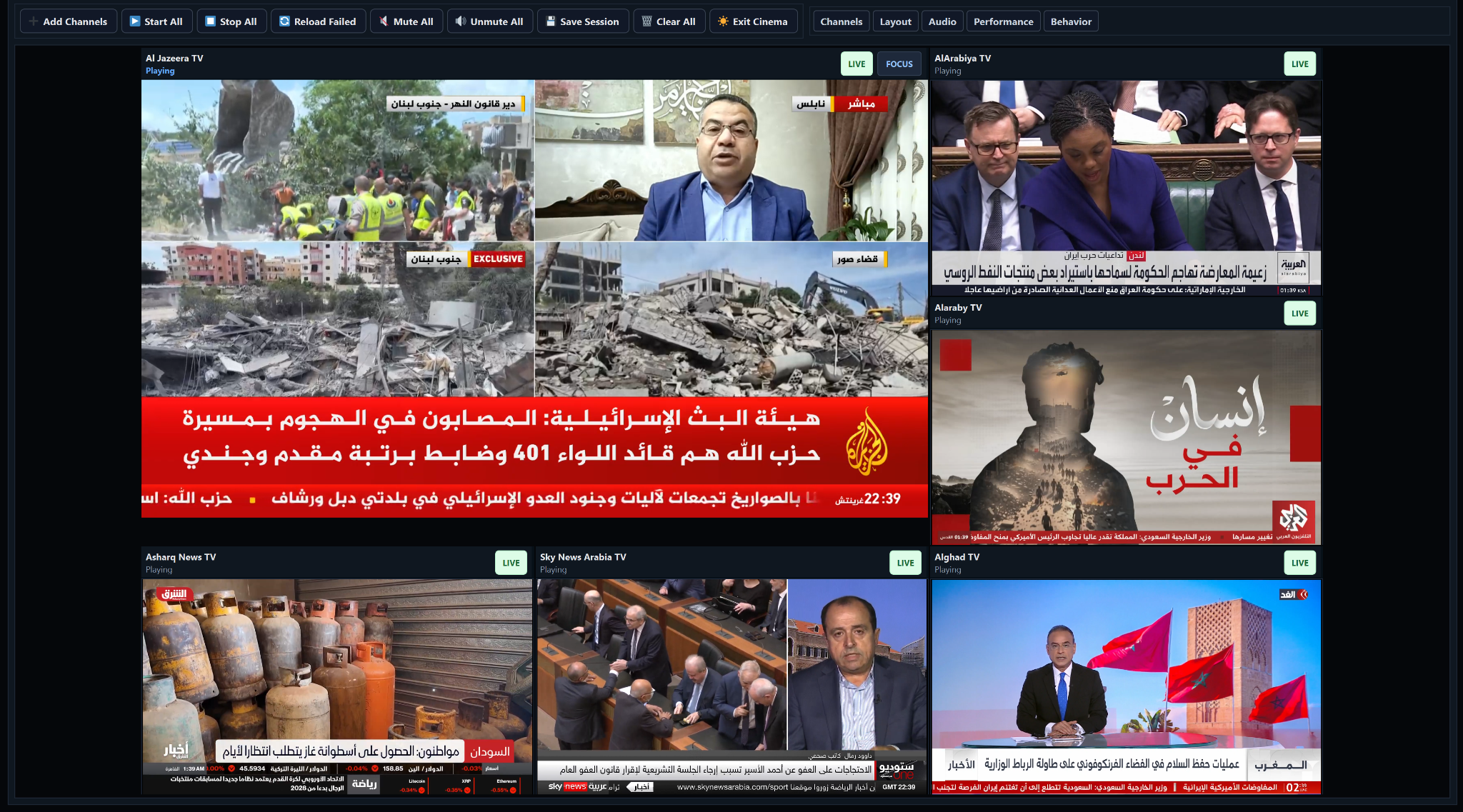
Focus mode
One primary live source becomes the visual center while other channels remain visible around it.
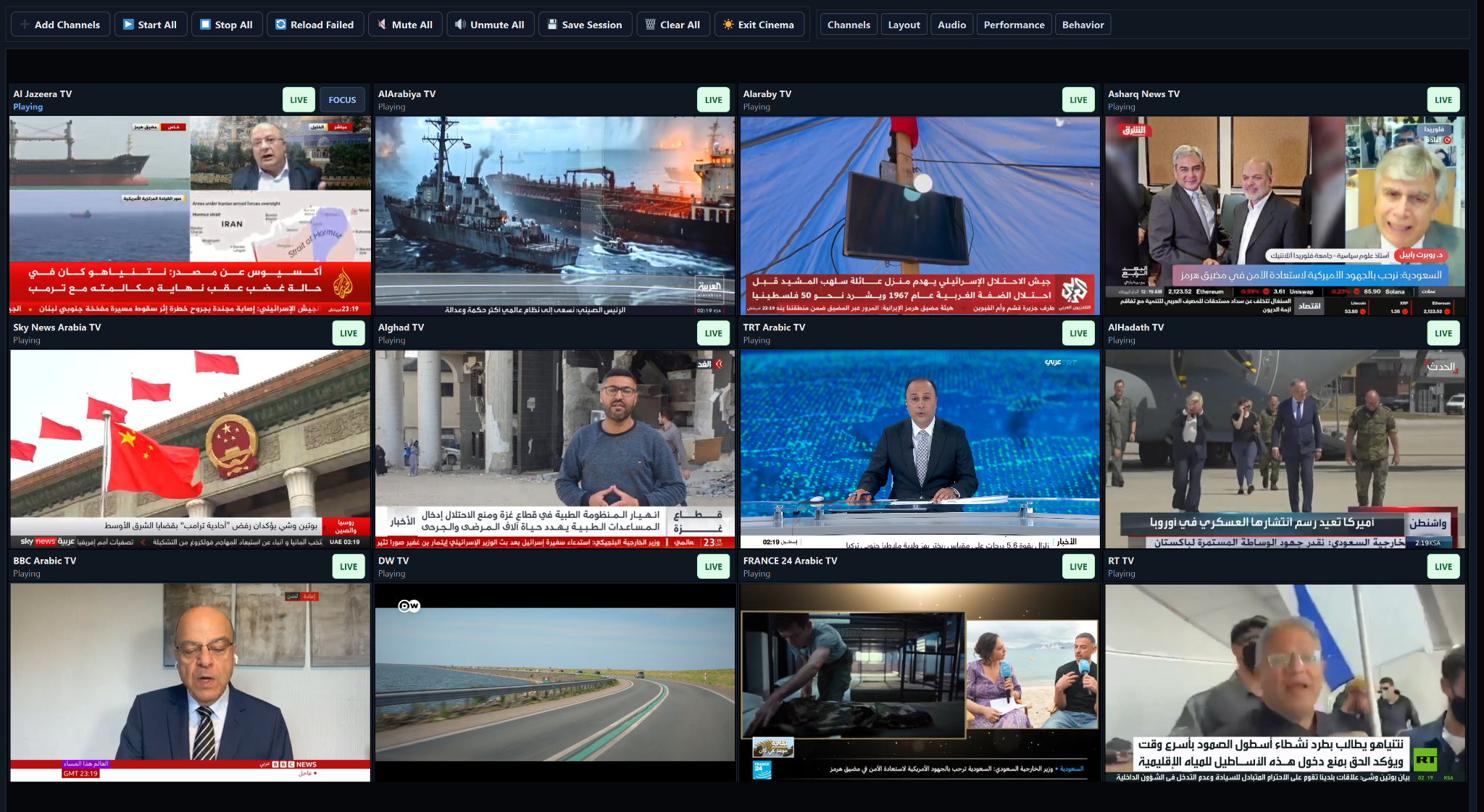
Uniform grid
Equal-sized tiles help operators scan many channels quickly and consistently.
Diagnostics
Detect broken links before they interrupt work.
Offline Links scanning checks station availability, shows progress, reports failed items and supports safer maintenance of a large media database. The fixed Last Links Scan field preserves the latest scan time, online and offline totals, and the overall health percentage.
- Scan one selected link or the whole database
- Separate diagnostic surface for failed stations
- Useful before recording sessions and channel imports
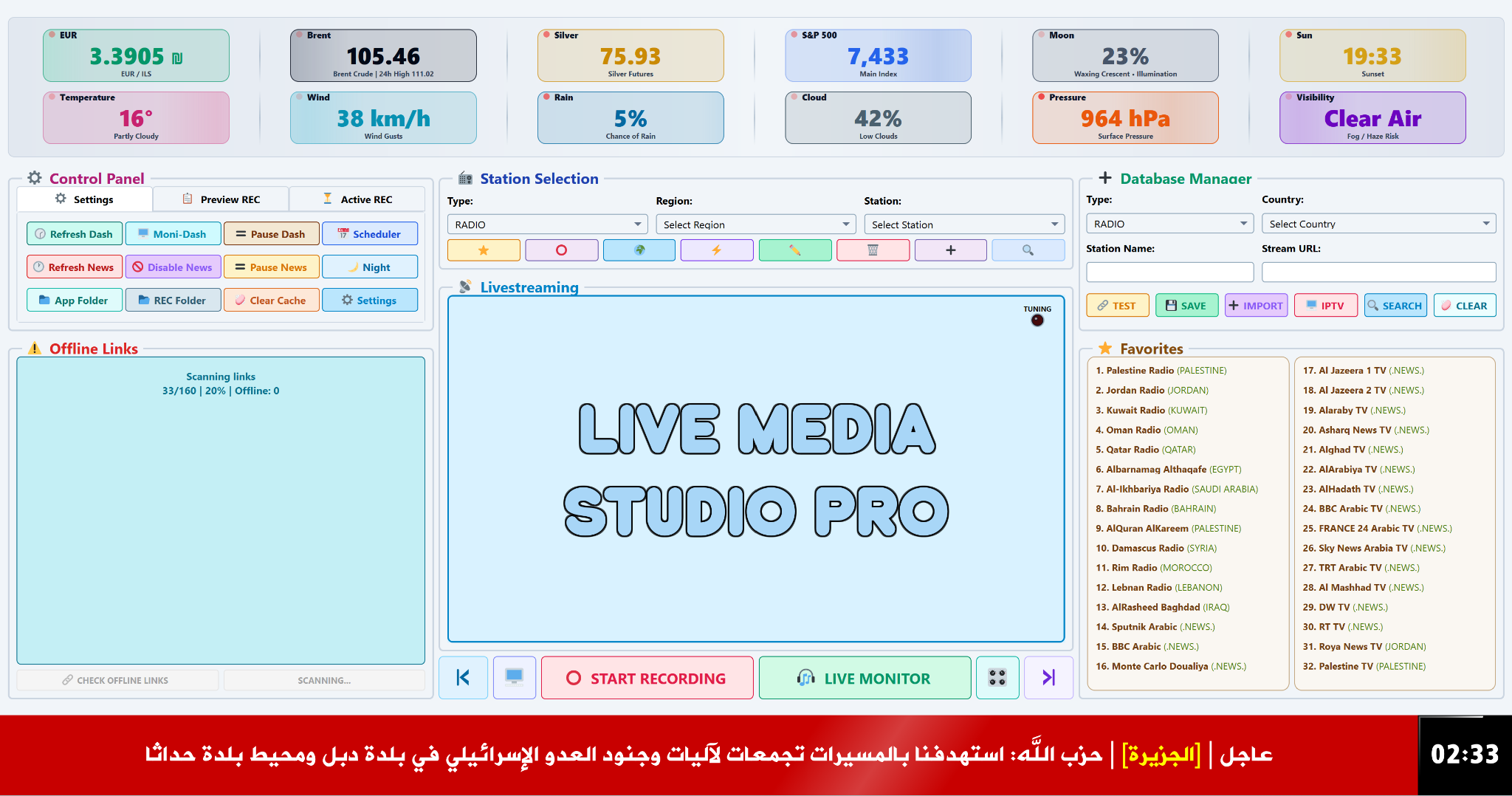
Dashboard and themes
Operational information with a visual identity.
Dashboard cards, the news ticker and seven complete interface themes give the studio both operational context and a distinct visual identity.
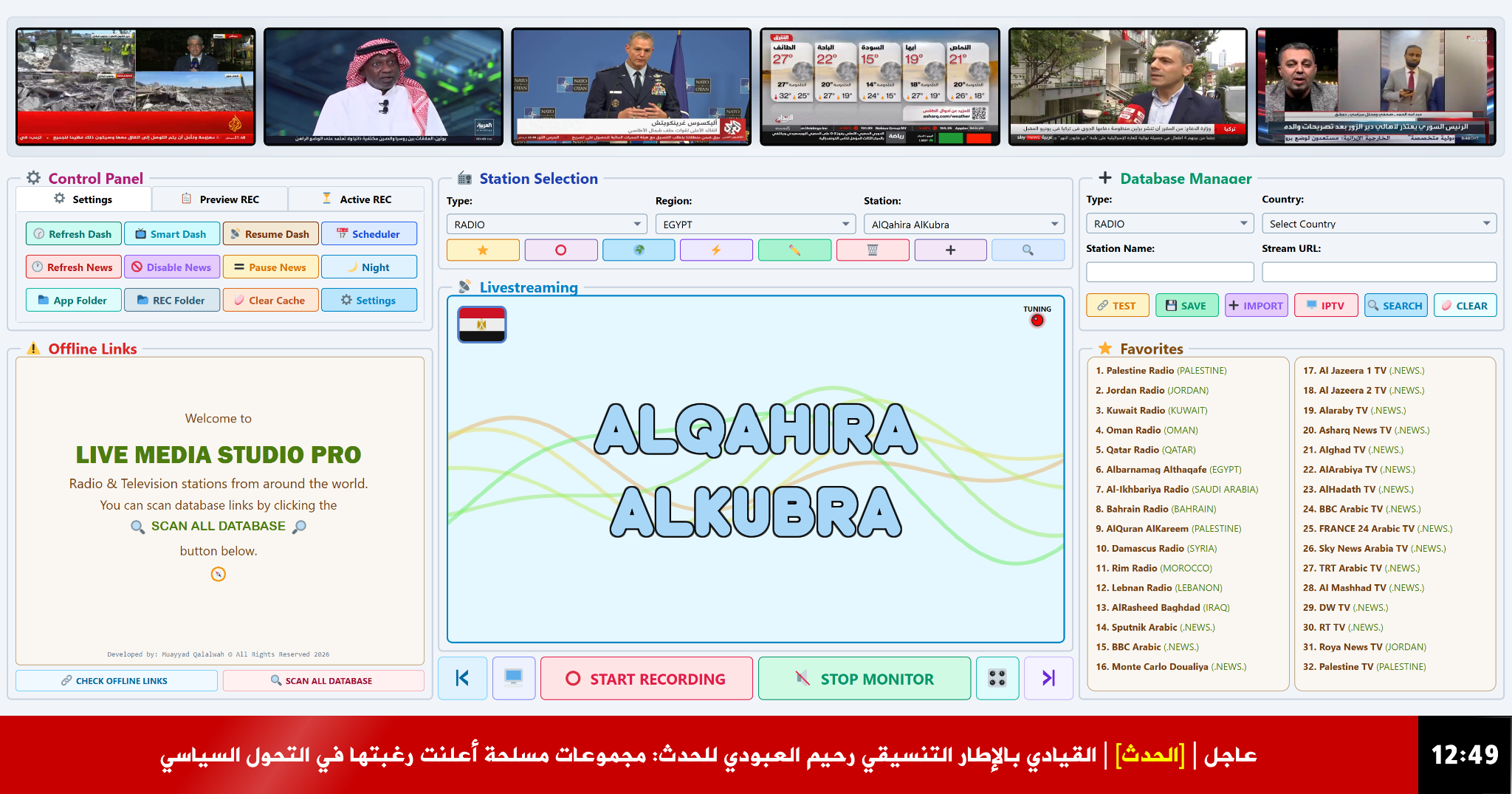 Live dashboard
Weather, market, moon, sun, pressure and visibility cards stay visible above the workspace.
 Seven interface themes
Choose Day, Night, Ocean, Green, Purple, Red or Graphite to match the workspace to the operating environment.
Screen library
A cinematic screenshot library with fast hover navigation.
Hover a category to filter the set, hover any thumbnail to preview it instantly, and click the main image for a large view.
Complete operating screen
Dashboard, livestreaming, database manager, favorites, diagnostics and ticker are visible together.
User manual
Open or download the complete HTML user manual.
Use the illustrated manual whenever you need installation, playback, recording, monitoring, diagnostics or interface guidance.
Illustrated guide
HTML format
Opens in a new tab
Common questions
Program questions grouped by real feature area.
Answers cover playback, IPTV, recording, monitoring, diagnostics, dashboard, station management and daily operation.
Latest update
Version Checking...
Update date: Checking...
- Installer blocks unsafe removal while the program is running.
- Crash reports can be sent directly from inside the program.
- Program data is stored in the user profile instead of the installation folder.
- Update checks can notify users when a newer version is available.
View update archive Previous versions and their release notes
Loading update archive...
Review the screens, open the manual, then download.
Get the latest release, review real screens, and use the manual for setup, playback, recording, monitoring and diagnostics guidance.
⬇Download latest version